
PREREQUISITES
1. You have established a business entity with an EIN and have the exact, accurate business name, address, and entity type available.
2. You have published a website with a clear description of what you do (purchase homes) and an opt-in form requiring name, property address, phone number, and a checkbox that must be checked by the user, indicating their consent to be messaged.
3. You have created a Twilio account, and it is 10DLC Verified
4. You subscribed to one of our Plans (https://leadsherpa.com/pricing/)
5. You have linked your Twilio Account to your Lead Sherpa account
STEPS
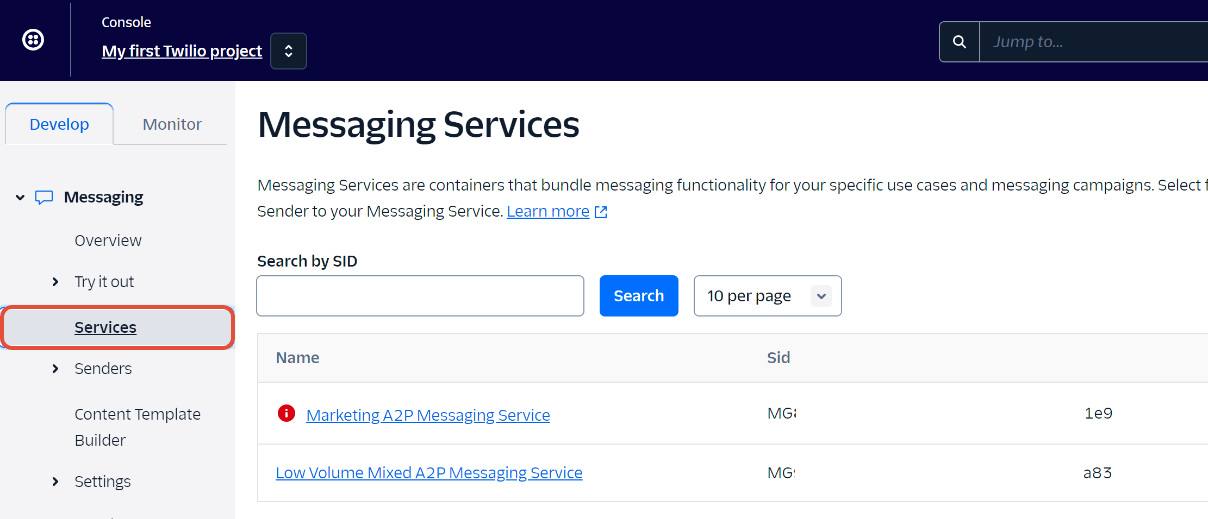
1. On your Twilio account, browse to Messaging → Services and make sure to choose the correct service if you have more than one.
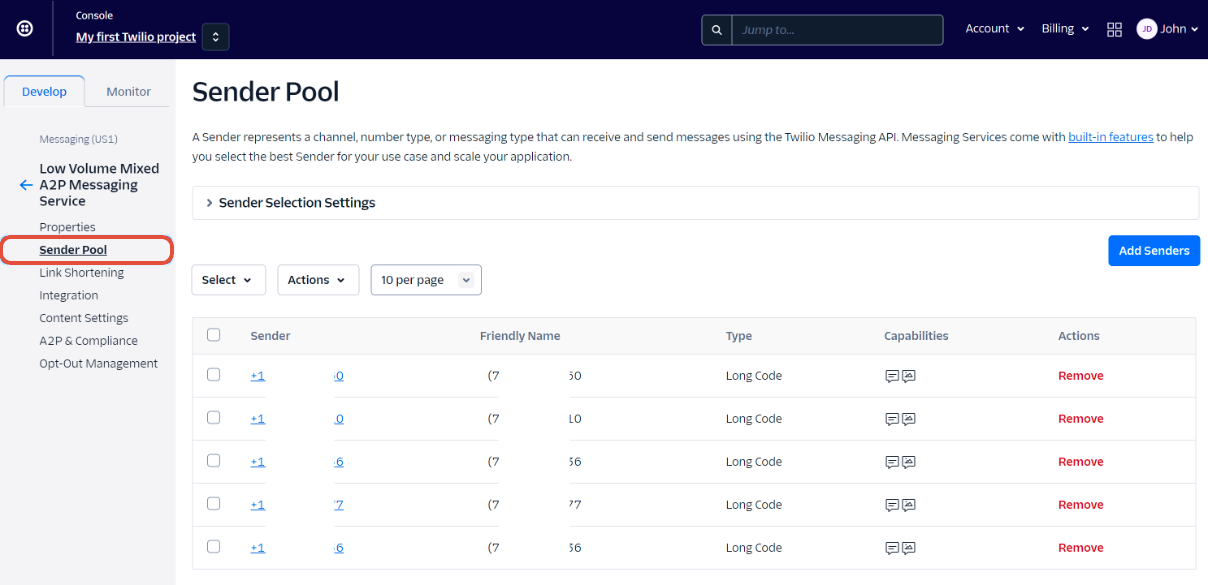
2. After selecting the service, select "Sender Pool" to see the numbers currently assigned to the messaging service. Click "Add Senders"
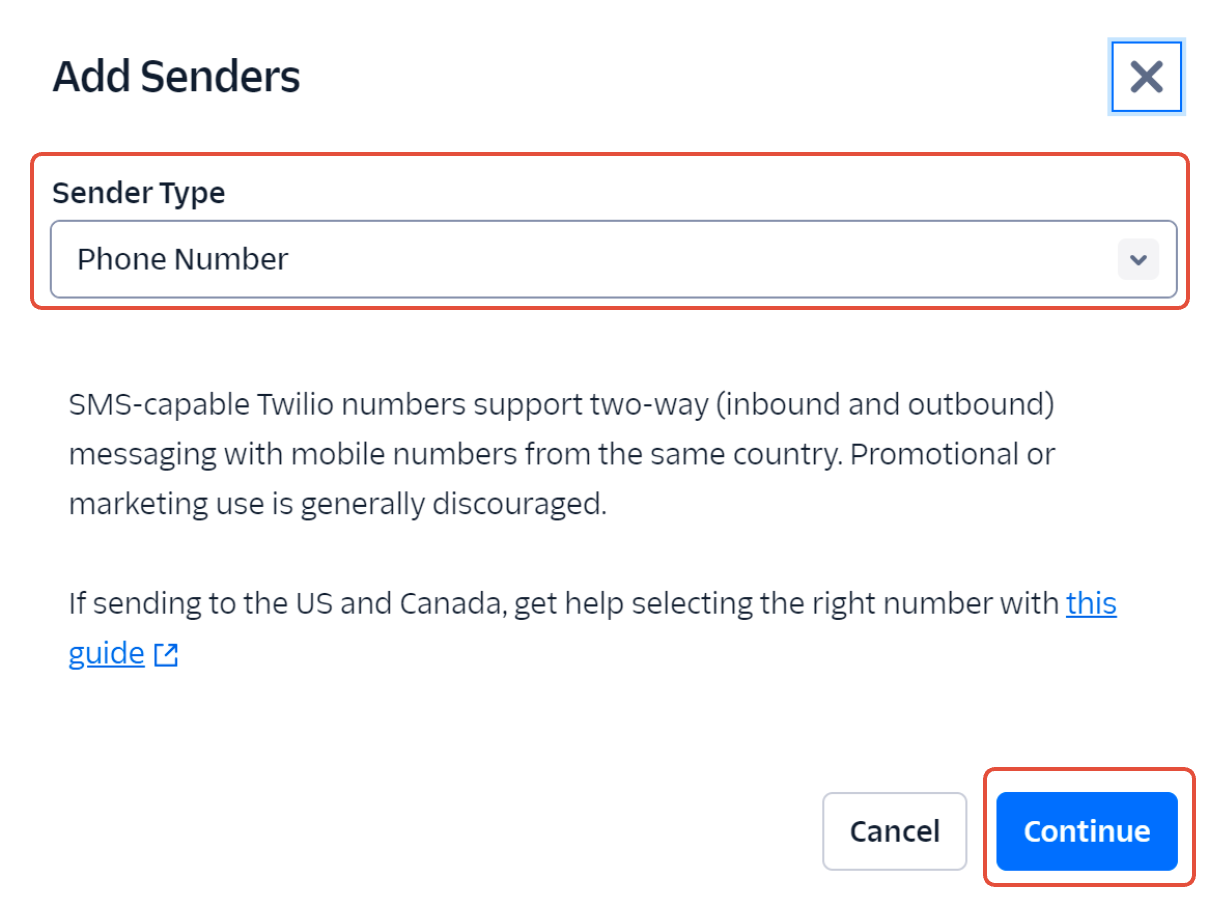
3. Choose to proceed with "Phone Numbers" as sender type
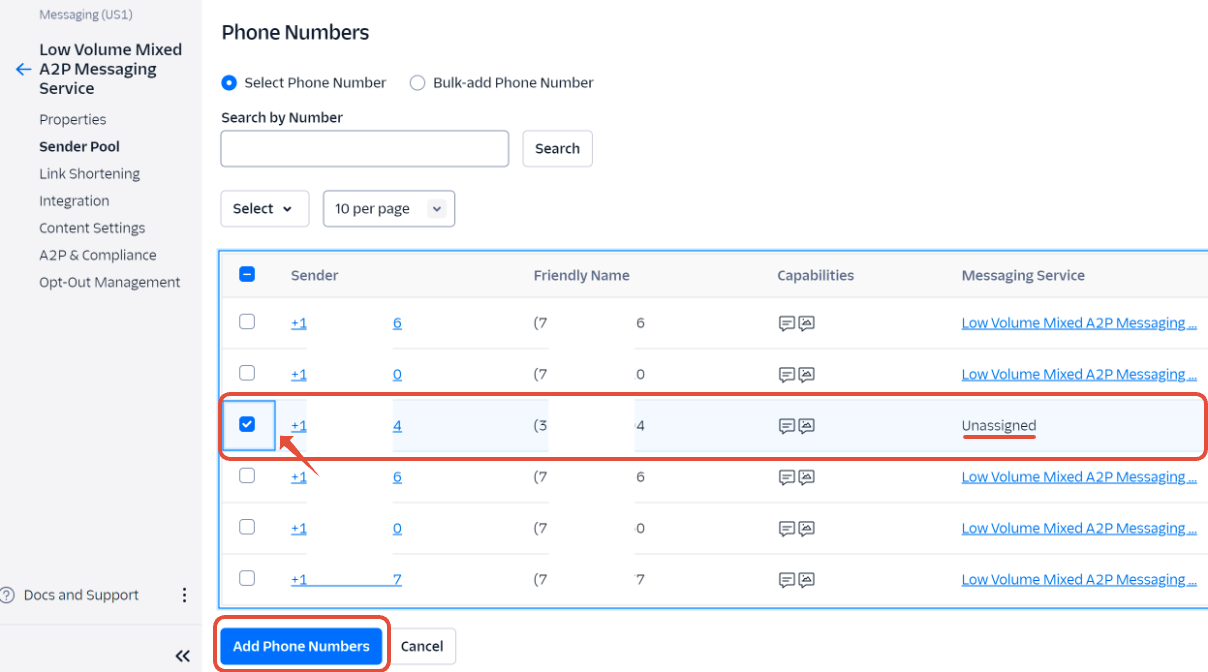
4. Select any numbers listed "unassigned" that you want to use for messaging, then click "Add phone numbers"
5. On your Lead Sherpa account, go to your Account Settings → Manage App Integrations and click on "Refresh Connections".

Comments
Article is closed for comments.